FTPS Server - Connecting with an FTP Client
In order to upload or download data to or from Horizon's FTPS server, customers will need to use an FTP client and authenticate using the unique account created for them in the FTPS Server - Creating Client Access Accounts page. FileZilla is a free multi-platform FTP client which can be installed and configured quickly and easily. This article will detail the process to download and install FileZilla and configure the Horizon FTPS server for customer access.
Customer FTP credentials should be saved in Keeper under their respective folder in Horizon Clients.
Procedure
- Download the FileZilla client.
- Run the FileZilla client installer, accepting defaults in the wizard. Decline any optional offers during installation, such as AVG Secure Browser.
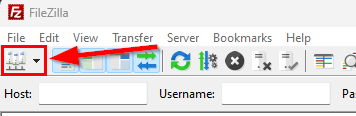
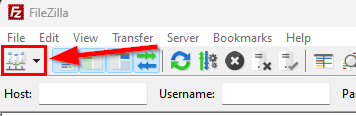
- Run FileZilla and click the Hosts button on the toolbar:
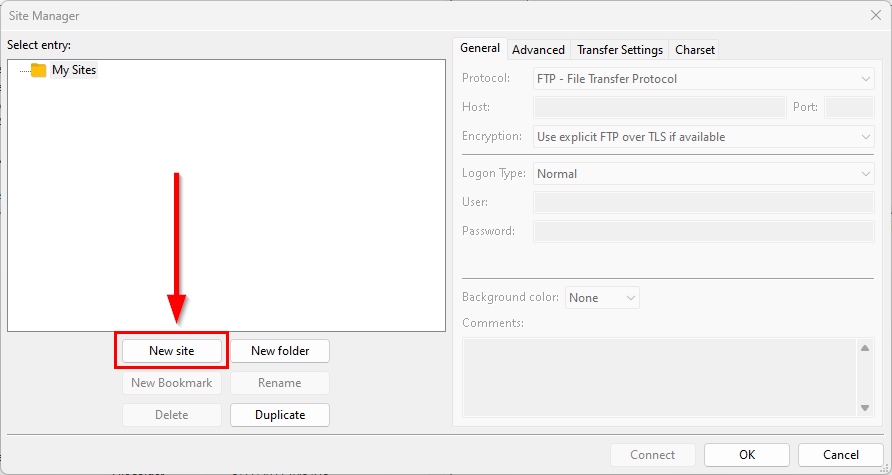
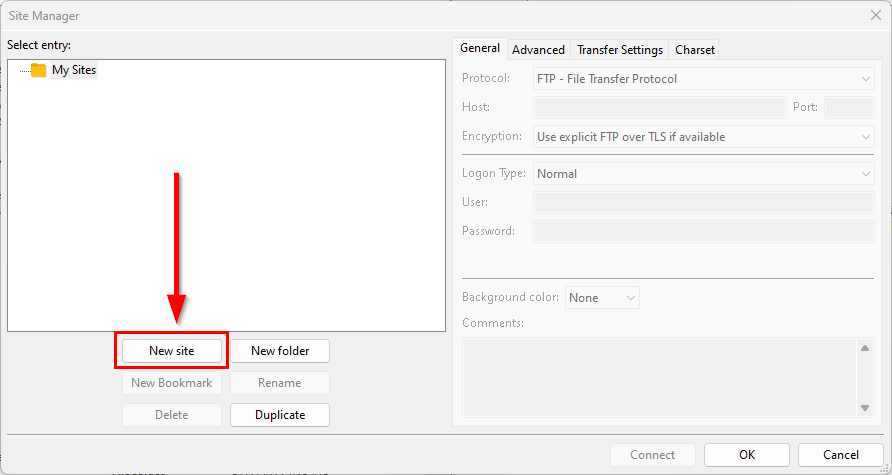
- Click the New site button:
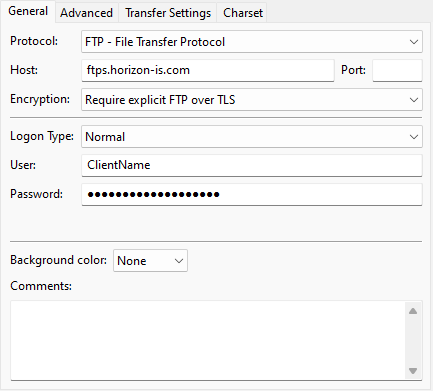
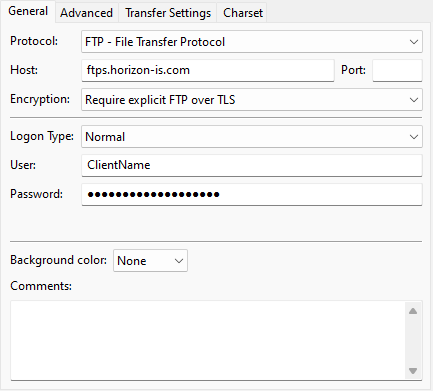
- Enter the following information:
- Protocol: FTP - File Transfer Protocol
- Host: ftps.horizon-is.com
- Encryption: Require explicit FTP over TLS
- Logon Type: Normal
- User: [ClientName]
- Password: [ClientPassword]
- Click the Connect button, choose the Save passwords option, and click the OK button.
- If an Unknown certificate window appears, confirm the SSL certificate lists "ftps.horizon-is.com" in the common/alternative names, check both boxes at the bottom of the window to trust the certificate, then click the OK button.
- FileZilla should make a secure connection to the Horizon FTPS server and place you in the customer's secure directory.
- You can now drag-and-drop files between the local machine and the Horizon FTPS server as needed.