Skip to main content
Uploading Data to the Horizon FTPS Server
- Download the FileZilla client.
- Run the FileZilla client installer, accepting defaults in the wizard. Decline any optional offers during installation, such as AVG Secure Browser.
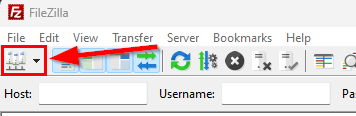
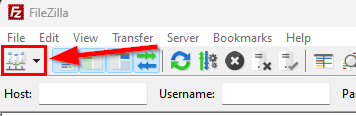
- Run FileZilla and click the Hosts button on the toolbar:
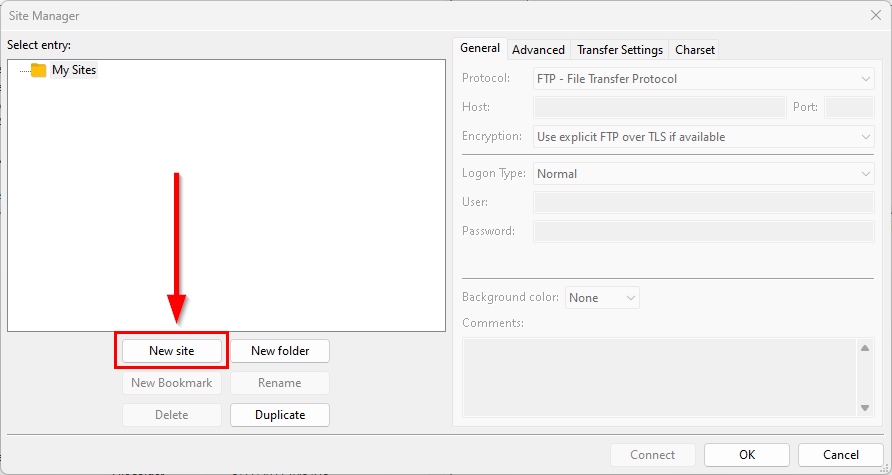
- Click the New site button:
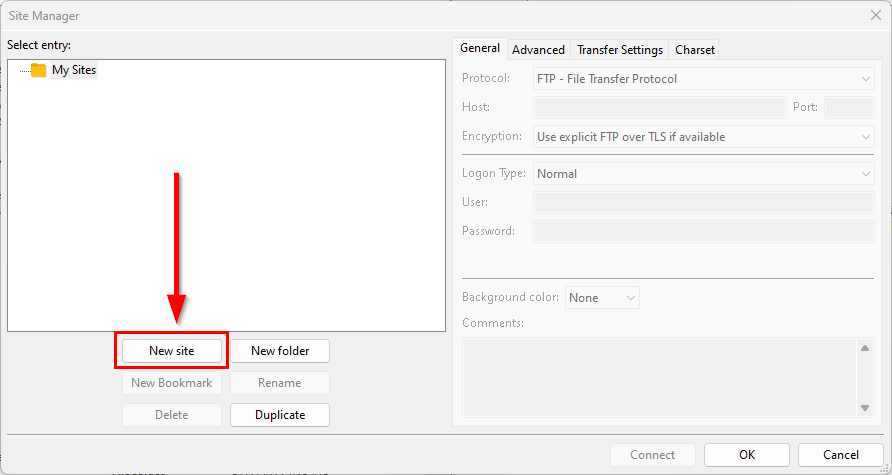
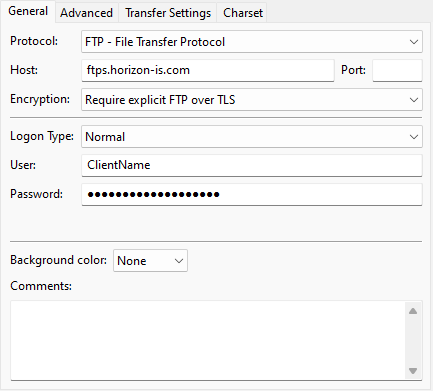
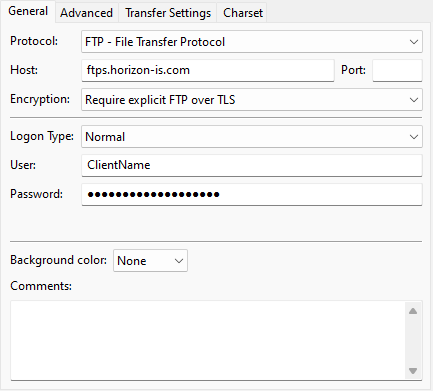
- Enter the following information:
- Protocol: FTP - File Transfer Protocol
- Host: ftps.horizon-is.com
- Encryption: Require explicit FTP over TLS
- Logon Type: Normal
- User: [ClientName]
- Password: [ClientPassword]
- Click the Connect button, choose the Save passwords option, and click the OK button.
- If an Unknown certificate window appears, confirm the SSL certificate lists "ftps.horizon-is.com" in the common/alternative names, check both boxes at the bottom of the window to trust the certificate, then click the OK button.
- FileZilla should make a secure connection to the Horizon FTPS server and place you in the customer's secure directory.
- You can now drag-and-drop files between the local machine and the Horizon FTPS server as needed.